
Chrome Beta
Google LLCProductivity
4.419.77K Reviews
- Version
- 153.0.8010.18
- Installs
- 50.00M
- Age Rating
- Everyone
Screenshots
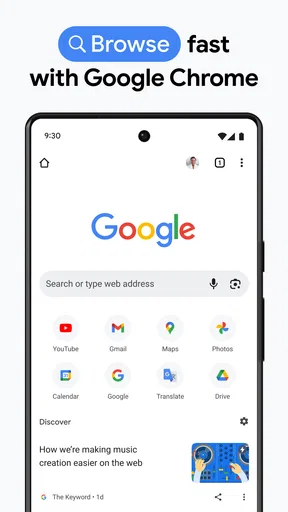
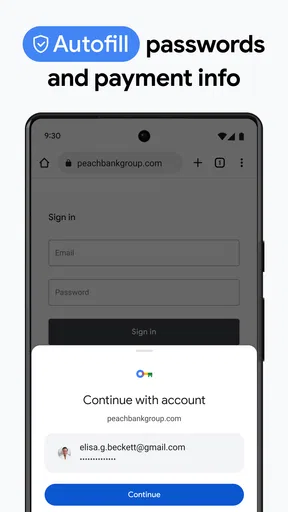
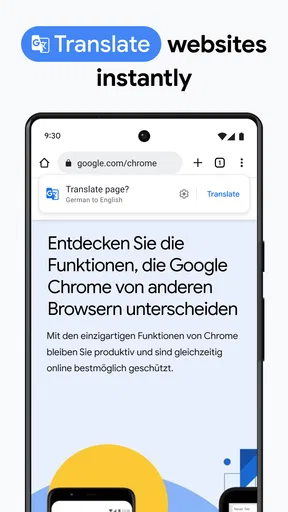
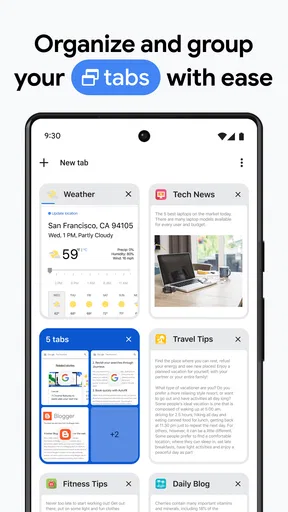
Our Review of Chrome Beta
 Analysis by Appyee
I approached Chrome Beta as a working browser rather than a novelty app. It is Google LLC’s free productivity app for Android, aimed at people who want to try Chrome changes before they reach the more settled version. The basic appeal is familiar: open a page, search, move between tabs, and keep browsing without carrying a desktop-sized experience in your pocket. What matters in daily use, though, is how well it handles changing networks, crowded mobile screens, and the small interruptions that make phone browsing frustrating.
My overall impression is positive, with one important qualification: this is a beta browser, so I would choose it for access to newer Chrome behavior, not because I need the most conservative possible browsing environment. It feels quick and recognizable, but the value depends heavily on your connection and your tolerance for occasional rough edges. If you already use Chrome and want to see where it is heading, the transition is easy. If you need a browser that behaves like a completely predictable utility every day, the stable release is the safer recommendation.
How Chrome Beta feels when the network changes
The browser’s character becomes clearest when the connection is inconsistent. On a strong mobile signal or dependable Wi-Fi, the familiar Chrome layout keeps the experience straightforward. I can search, open several pages, and switch between them without having to rethink where common controls are. That simplicity is useful on a small screen because browsing already involves enough compromises: narrow text columns, touch targets, and the need to remember which tab contains what.
Connectivity is also where expectations need to stay realistic. A browser can make navigation feel immediate, but it cannot make a distant website respond when the network is congested or unavailable. Pages that depend on remote content may load in stages, pause while waiting for resources, or fail to become useful at all when the connection drops. I found it more helpful to judge the app by how clearly it lets me continue or retry than by expecting every page to behave as if it were stored on the phone.
A practical habit is to open important pages before leaving a reliable connection, then avoid closing them casually while moving between places. This is not a promise that every page will remain fully usable without a network; it is simply a sensible way to reduce repeated loading. For a travel plan, a work address, or a long article, I would also keep a second route to the information rather than treating the browser as the only copy.
The beta channel makes network-related problems slightly harder to diagnose. When a page stalls, the cause may be the connection, the website, or a browser change being tested. I usually check another known site first. If that also struggles, the network is the likely problem. If other pages work, I retry the original page, inspect whether it has refreshed, and consider whether the site itself is overloaded. That small bit of discipline prevents me from blaming the app for every delay.
What happens in an everyday mobile scenario
Imagine checking a delivery update while walking from a train station to a meeting. The first page may open normally on station Wi-Fi, then fail when the phone switches to mobile data. In that situation, the useful part of Chrome Beta is not a magical speed boost; it is the familiar interface and the ability to retry without learning a new browser. I would wait until the connection settles, reload once, and avoid repeatedly tapping the same control, since repeated requests can make a weak connection feel even more chaotic.
The same pattern appears when I use a browser for a quick work task. I might search for a document reference, move to a company page, and return to the results. On a good connection, the flow is efficient. On a poor one, every extra tab becomes another open request competing for attention. My advice is to close pages that have served their purpose and keep the active set small. This is less about a special Chrome Beta trick than about matching a phone browser to the limitations of mobile connectivity.
For people who browse mostly at home, the beta release can feel almost indistinguishable from a regular Chrome routine. For commuters, travelers, and anyone moving between Wi-Fi and cellular service, the experience is more variable. That does not make the app unsuitable, but it does mean that the browser should be paired with sensible habits: load essential information early, retry deliberately, and do not assume that a page that opened a moment ago will instantly open again after a network handoff.
Recovering from stalled pages and awkward sessions
When a page does not finish loading, I prefer a simple recovery sequence. First I check whether other pages respond. Then I wait briefly instead of tapping reload repeatedly. If the page remains stuck, I reload once and, if necessary, return to the previous page and reopen the destination. This approach is particularly useful on a phone because several rapid reloads can make it difficult to tell whether the browser is working, the site is working, or the connection has changed underneath it.
Tab management matters more than many new users expect. A long-lived collection of tabs can become a record of unfinished intentions: shopping comparisons, searches, news pages, and forms that were supposed to be revisited. When the network is unreliable, that clutter becomes harder to manage because some tabs may show old content while others are waiting for fresh content. I periodically close disposable tabs and keep only pages connected to an immediate task. It makes recovery faster because I know which tab deserves attention.
There is also a trade-off in using a beta browser for recovery. Testing newer behavior can expose improvements earlier, but a change that works well on one phone or website may not feel equally polished everywhere. I would not install Chrome Beta immediately before an important deadline if browsing is central to the task. For ordinary exploration, the risk is acceptable. For banking, school submissions, travel check-ins, or work portals where a failed session would be costly, I would keep the stable Chrome app available as a fallback.
That fallback is not an admission that the beta is unreliable in general. It is a sensible separation of roles. Chrome Beta is the place I would test the next iteration of the browser; stable Chrome is the place I would go when I want fewer variables. Keeping both can also make troubleshooting easier: if the same page fails in both, the website or connection deserves more suspicion than the beta channel.
Using mobile data without turning browsing into guesswork
Chrome Beta is free, but browsing still has a practical cost when pages consume mobile data. The app does not change the fact that modern sites can contain large images, scripts, video, and advertising resources. I try to avoid opening several media-heavy pages at once when I am away from Wi-Fi, especially if I only need a short piece of information. Searching for a specific answer first is often more efficient than opening a homepage and letting every section load.
My most useful data-conscious workflow is to decide what I actually need before opening a page. If I am checking an address, I look for the address rather than browsing through unrelated sections. If I am comparing products, I open only the pages that have a realistic chance of answering the question. This reduces both data use and battery drain, while also making it easier to recover when the signal disappears.
Video is another point where restraint helps. A page may begin loading more content than I intended, and a quick visit can become a much heavier session if I leave several tabs open. I stop playback when it is not essential, close pages I no longer need, and avoid refreshing simply because an image took a moment to appear. These are ordinary browsing choices, but they have a bigger effect on a phone plan than switching between similar browser layouts.
One subtle trade-off is convenience versus control. Keeping multiple pages open is useful for research, but it can encourage background clutter and repeated revisits. A focused session with a few purposeful tabs is better for limited connectivity than treating the browser as a permanent scrapbook. If your main concern is strict data accounting, I would also use the phone’s own network settings to monitor consumption, because the browser alone cannot explain every byte used by every website.
Who will appreciate the beta channel most
I think Chrome Beta suits existing Chrome users who want a familiar starting point while trying newer browser behavior. The learning curve is small, and the free price removes the need to make a financial commitment. It also makes sense for curious Android users who do not mind reporting an occasional oddity to themselves, changing their routine, or switching to another browser when a particular site behaves badly.
The app has broad reach: it carries an Everyone content rating, has passed around fifty million installs, and holds a 4.4 average from roughly six hundred ten thousand ratings. Those figures suggest that it is not an obscure experiment, but they should not be mistaken for a guarantee that every beta build will suit every phone. Popularity tells me that the concept is well established; my own decision would still depend on how important reliability is for my daily browsing.
I would skip it if I dislike testing software, rarely want browser changes before they are settled, or depend on one especially sensitive website. I would also hesitate if my phone has very limited storage or if I already have a browser setup that meets every need. Installing another browser can create duplicated tabs, duplicated habits, and confusion about which app should open a page. In that case, the stable version of Chrome or a privacy-focused alternative may be a better fit.
Chrome Beta beside the usual alternatives
Compared with stable Chrome, the main distinction is the release channel rather than a completely different browsing philosophy. Stable Chrome is the choice I make when I want the least experimental path. Chrome Beta is more interesting when I value early access and can accept that polish may vary. For a person already comfortable with Chrome’s layout, Beta is less disruptive than moving to an unrelated browser.
Compared with privacy-first browsers, it is not the option I would choose solely for a privacy-centered identity. Those alternatives may appeal more to someone whose first question is how much tracking protection or customization the browser emphasizes. Compared with highly customizable browsers, Chrome Beta can feel less like a toolkit and more like a ready-made environment. That is a strength for simplicity and a weakness for users who want to tune every part of the experience.
Compared with lightweight browsers, it may be a better choice when compatibility with mainstream websites matters more than keeping the interface minimal. On the other hand, a lightweight option can be preferable on an older phone or a very restricted connection. The right comparison is not “which browser is fastest?” in the abstract. I would ask whether I need Chrome familiarity, early releases, stronger customization, stricter privacy controls, or the smallest possible footprint.
Version, support expectations, and my final connectivity verdict
The current version is 153.0.8010.18, and the app has been available since December 12, 2012. I mention that history because it explains why the product feels mature even though the channel is labeled beta: this is not a new browser concept, but a testing path for an established one. Google LLC gives it the recognizable Chrome foundation, while the beta label changes the expectations around stability and timing.
In my experience, the best way to use Chrome Beta is to give it a defined job. I would use it as my everyday browser if I enjoy early changes and have a stable fallback. I would use it for testing websites if I need to see how they behave in a newer Chrome environment. I would not make it my only lifeline for a critical task, particularly when I am traveling through areas with unreliable service.
My connectivity verdict is straightforward: Chrome Beta makes connected browsing feel familiar, but it cannot remove the limits of the network underneath it. It handles ordinary mobile browsing in a way that feels approachable, and its free availability makes trying it easy. The cost is not money; it is tolerance for beta-level uncertainty and the need to manage tabs, retries, and data more thoughtfully when the connection changes.
I recommend it to Android users who already like Chrome and want a preview-oriented browser without rebuilding their habits from scratch. I recommend stable Chrome to anyone who values predictability above experimentation, and a different browser to anyone whose priority is specialized privacy, customization, or minimal resource use. For me, Chrome Beta earns a place as a practical second browser or an adventurous daily choice, provided I remember the most important rule: when the signal fails, no browser can negotiate with the air.
Verdict
Strengths of Chrome Beta
- Try upcoming Chrome features before the stable release.
- Useful for testing websites and reporting bugs early.
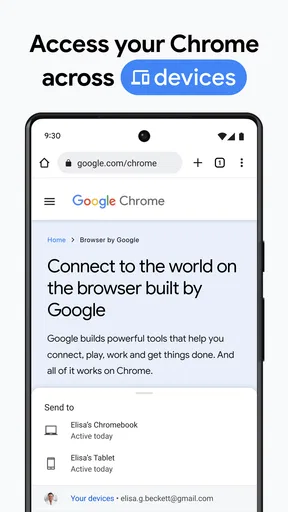
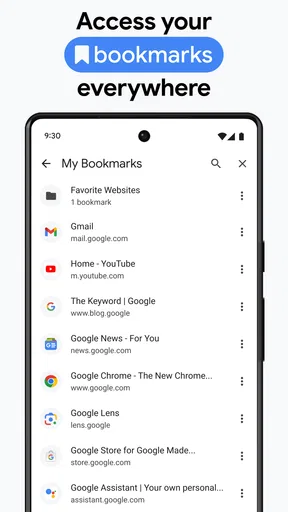
- Sync bookmarks, passwords, and settings across devices.
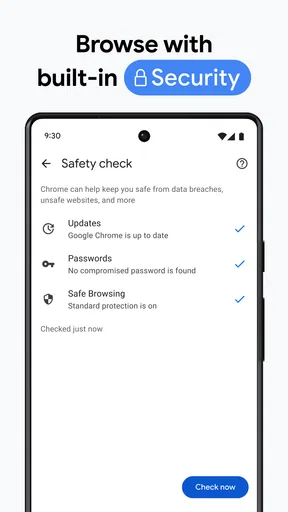
- Includes strong security features and frequent updates.
- Supports extensions and modern web standards on compatible devices.
Limitations of Chrome Beta
- Beta features may crash, freeze, or behave unpredictably.
- Some experimental tools can be removed without warning.
- Performance and battery use may vary after each update.
- Not ideal for users who need maximum browsing stability.
- Requires extra storage and mobile data for frequent updates.
Other Releases by Google LLC
View All
Google Calendar
Productivity4.6

Google Messages
Communication4.6

Tools4.0

Google TV
Video Players & Editors3.9
Similar Picks in This Category
View AllGoogle Calendar
Google LLC4.6

Google Drive
Google LLC4.3

Google Assistant
Google LLC3.9

Microsoft OneDrive
Microsoft Corporation4.6

Samsung Calendar
Samsung Electronics Co., Ltd.4.1

Microsoft OneNote: Save Notes
Microsoft Corporation4.6
Frequently Asked Questions
What is Chrome Beta, and how is it different from the regular Chrome app?
Chrome Beta is a test version of Google Chrome for Android that includes features and improvements before they reach the stable release. After using it, I found that it feels familiar and supports the same core browsing experience, but it may contain unfinished changes, occasional bugs, or performance issues. It is best suited to users who want early access and are comfortable with testing software that is still being refined.
Is Chrome Beta safe to download and use?
Chrome Beta is an official Google application distributed through trusted app stores, so downloading it from Google Play is generally safe. It includes Chrome’s standard security features, such as warnings for dangerous websites and protection against suspicious downloads. However, because it is a pre-release version, reliability is not always identical to stable Chrome. Users should keep the app updated and avoid downloading it from unofficial websites.
Can I use Chrome Beta alongside the standard Chrome app?
Yes, Chrome Beta can usually be installed alongside the regular Chrome app because it is treated as a separate application. This makes it convenient to test upcoming features without replacing your everyday browser. During testing, both versions can share some Google account data and browsing settings if synchronization is enabled, so you should review sync preferences carefully, especially on a device used for work or sensitive browsing.
Will my bookmarks, passwords, and browsing history work in Chrome Beta?
If you sign in with the same Google account and enable synchronization, Chrome Beta can provide access to synced bookmarks, saved passwords, browsing history, open tabs, and other browser settings. The exact availability depends on your account and device configuration. Since Beta software can occasionally behave unexpectedly, it is wise to maintain a backup of important information and use caution before relying on it as your only browser.
What should I do if Chrome Beta crashes or causes browsing problems?
If Chrome Beta becomes unstable, first update it through Google Play and restart your device. You can also close unused tabs, clear temporary cache data, or disable recently added experimental features if you enabled any. If the issue continues, report it through Chrome’s feedback tools and switch temporarily to stable Chrome. Avoid clearing all app data unless necessary, because doing so may remove locally stored tabs, settings, or unsynced information.
